OAuth authentication for AI clients on the MCP server, with a clients list in Settings
An AI client now connects to AgileHero through OAuth, by signing in with your AgileHero account. The client sends you to a consent page in AgileHero, you choose Connect, and the client gets access. There's no key to copy or paste: the client only needs the server address, https://mcp.agilehero.io/mcp. Clients connected the earlier way, with a token, stop working and need to connect again by signing in.
A connected client acts as you and can only ever do what you can do.
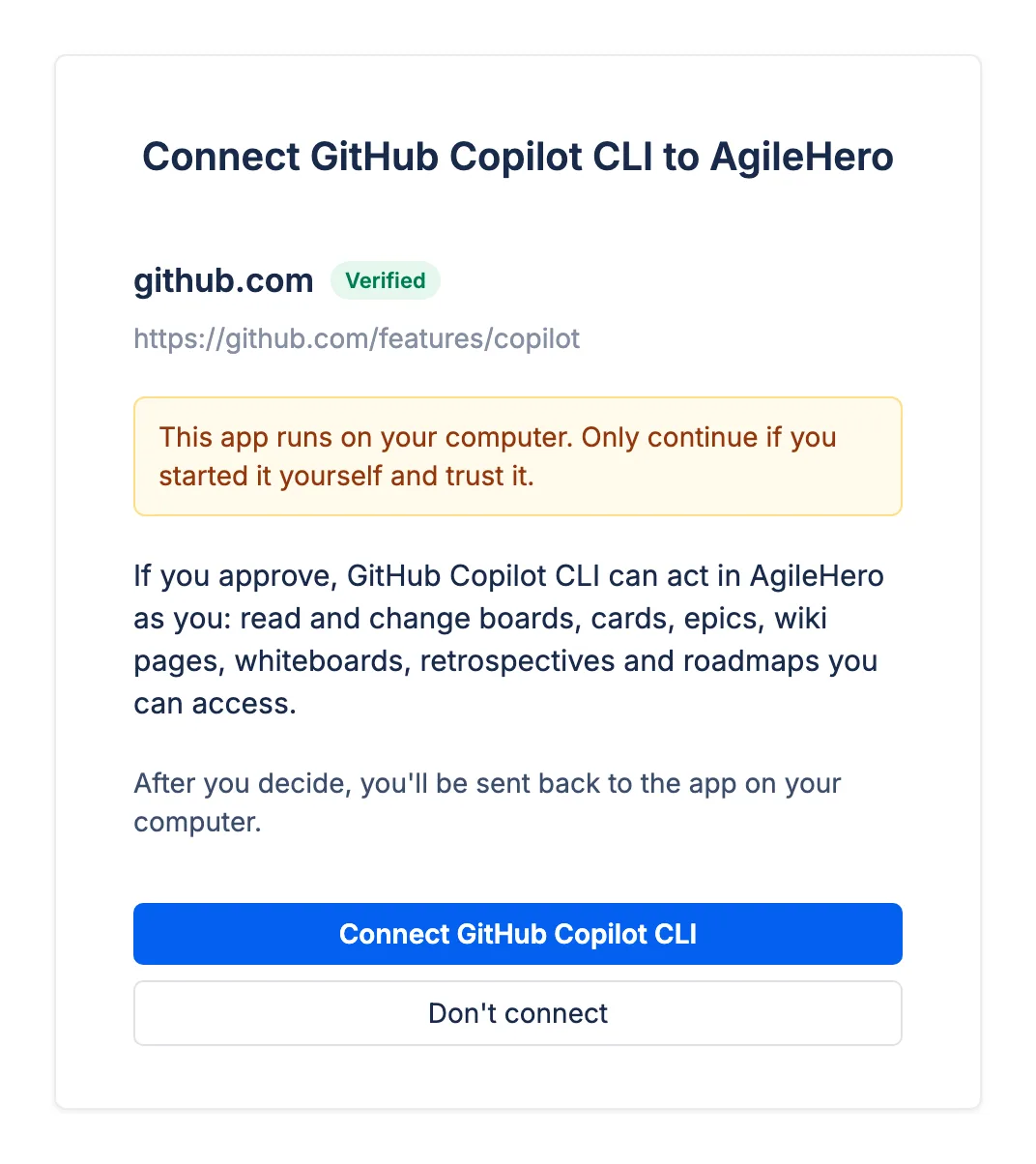
On the consent page, the client's web address is the boldest part of its details, because a client can give itself any name but can't fake its address. Clients we've checked carry a Verified pill, and every other client shows Not verified. If you're signed out, you sign in first, with a password, a passkey, or Google, and land back on the consent page. Approving a client asks for a fresh identity check, like other sensitive changes.
The AI clients page in Settings lists every client that has signed in, with when it connected and when it was last used. Revoke disconnects a client.
Connect a client opens a window with a picker of the supported clients, each with its setup steps. The picker lists Claude Code, Claude (web, desktop, and Cowork), ChatGPT, Codex, VS Code, Zed, and GitHub Copilot CLI. When a client finishes signing in, the setup window says so without a reload, for example "Claude Code connected." Some clients can't sign in to AgileHero yet. The picker counts them, and the MCP docs list each one with the reason.
Changing your password in Account settings now signs out your other sessions and disconnects every AI client, as resetting a forgotten password already did. The session you change it from stays signed in.